بمجرد تقديم الطلب وظهوره ضمن «الطلبات المعلقة»، يمكنك إدارة تفاصيله، والتحقق من البيانات الوصفية، وإحالته إلى المكتبات التي يُحتمل أن تقرضه.
الإجراءات المتاحة بشأن الطلبات المعلقة #
بالنسبة لكل طلب «جديد» مدرج في قائمة «الطلبات المعلقة»، يمكنك القيام بالإجراءات التالية:
- تحرير: تعديل أو تحديث البيانات الوصفية المرجعية للطلب الجديد.
- التحقق من الوصول المفتوح: يمكنك التحقق في أي وقت من توفر نسخة مفتوحة الوصول عن طريق تقديم رابط مباشر إلى نسخة الوصول المفتوح الخاصة بالمادة.
- حذف: قم بإزالة الطلب بالكامل من قائمتك باستخدام زر الحذف.
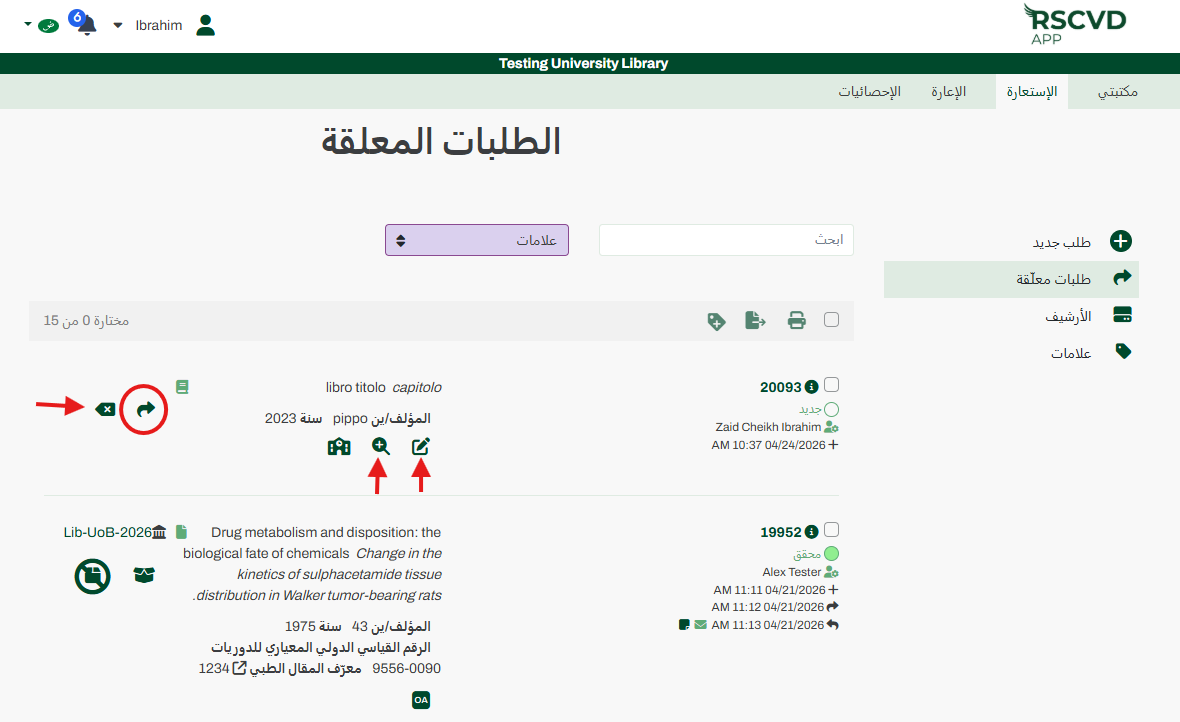
الشكل 14: تعديل وحذف طلب معلق
إرسال طلب إلى المكتبات #
للمضي قدمًا في الحصول على هذا المنتج:
- انقر على زر «الطلب»، مما سيؤدي إلى فتح علامة تبويب جديدة بعنوان «تفاصيل الطلب». في الجزء العلوي من الصفحة، ستظهر حالة الطلب وملخص للبيانات الوصفية التي تم إدخالها.
- اختر طريقة التوجيه التي تفضلها:
- اختر مزودًا واحدًا من قائمة جميع المكتبات المتاحة، أو اختر خيار«جميع المكتبات».يمكنك دائمًا البحث عن مكتبة باستخدام «مربعالبحث عن المكتبة»والبحث حسب اسم المكتبة أو البلد أو نوع المؤسسة أو مجال التخصص أو رمز التعريف.
- يرجى التأكيد لإرسال الطلب.
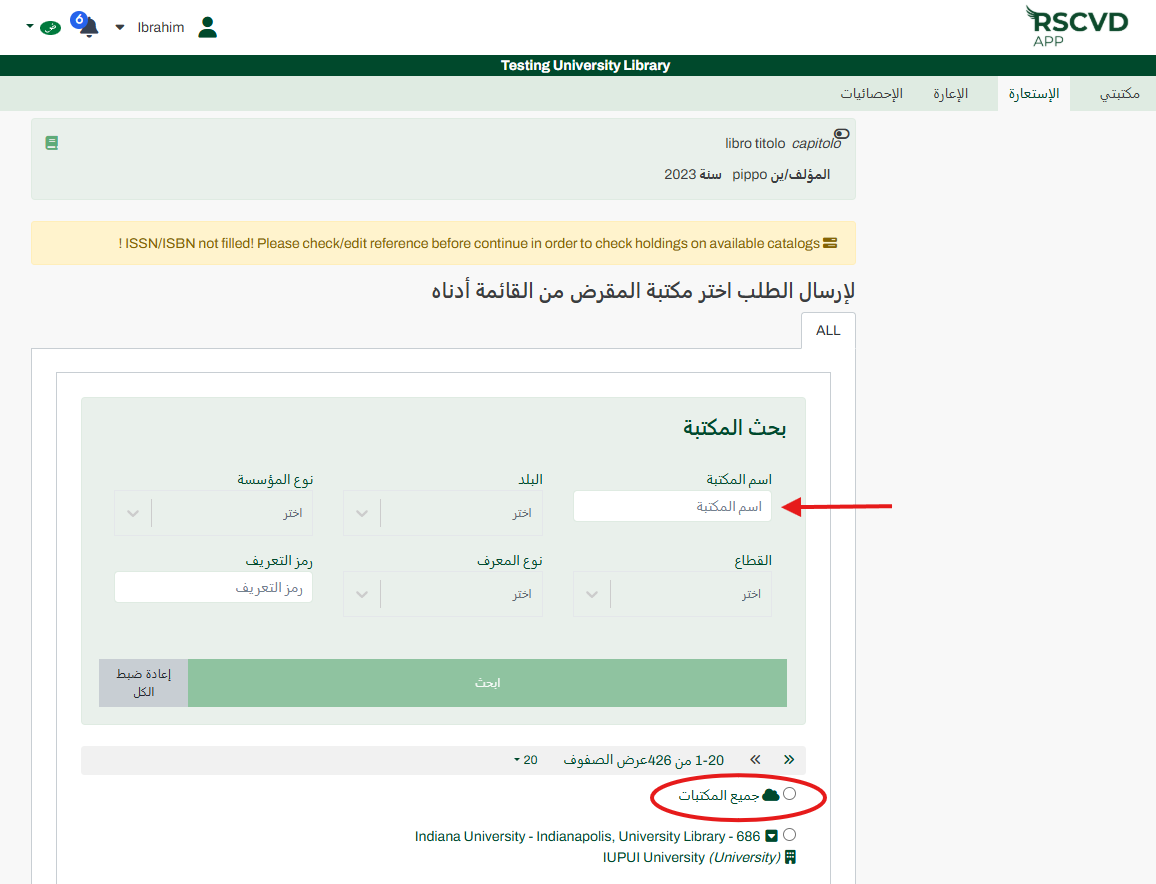
الشكل 15: إرسال الطلب
كيف تعمل طلبات «جميع المكتبات» #
عند اختيار خيار «جميع المكتبات »، يصبح الطلب مرئيًا لجميع المكتبات في المجتمع. وستقوم أول مكتبة قادرة على توفير المادة بالمطالبة بها وتلبية الطلب. وفي بيئة الإعارة، يُشار إلى هذه الطلبات باسم «الطلبات اليتيمة».
الإلغاءات ومحاولات الإعادة #
الإلغاء: يمكن إلغاء الطلب مباشرةً من قائمة «الطلبات المعلقة» إذا لزم الأمر. ويختلف أسلوب تنفيذ عملية الإلغاء باختلاف المكتبة المُقرضة. فإذا لم يتم قبول الطلب بعد، فإن عملية الإلغاء ستلغيه على الفور وتعيده إلى حالة«طلب جديد». أما إذا كانت المكتبة المُقرضة قد قبلت الطلب بالفعل، فلن يسري الإلغاء على الفور، بل سيصبح طلب إلغاء وستتغير الحالة إلى«طلب إلغاء». ولدى المكتبة المُقرضة خياران: إما قبول طلب الإلغاء أو توفير الوثيقة على أي حال.
إعادة تقديم الطلبات: إذا لم يتم تلبية أحد الطلبات، يمكنك إعادة المحاولة بسهولة. سيؤدي تحديد خيار «إعادة» إلى إنشاء نسخة مطابقة للطلب الأصلي وإرساله تلقائيًا إلى مكتبة أخرى أو إلى جميع المكتبات.