New Request (from Homepage) #
Step 1: Initiate a New Request
- Log in to the RSCVD homepage.
- Under My Permissions, click on the New Request tab corresponding to the specific library you are requesting from.
- You will be redirected to the borrowing environment interface.
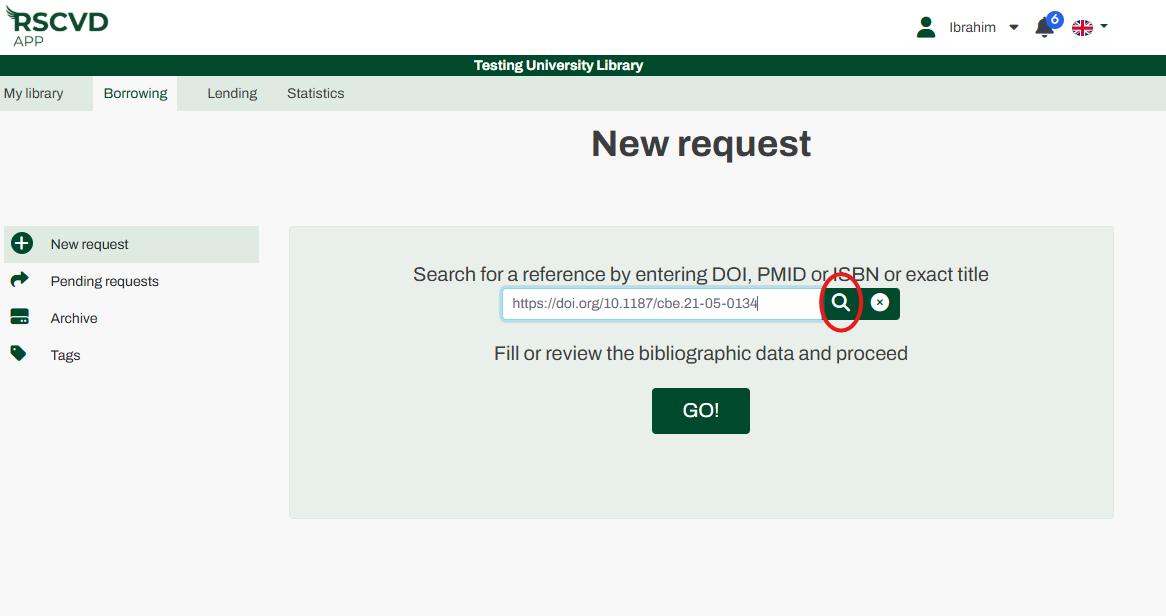
Figure 11: checking open access availibility and placing a request
Step 2: Search for the Reference
- Enter the reference details using one of the following identifiers:
- DOI (Digital Object Identifier)
- PMID (PubMed Identifier)
- ISBN (International Standard Book Number)
- Exact Title
- Click the magnifier thumbnail icon to execute the search.
Important: Do not click the “Go” button at this stage, as doing so will redirect you to a blank request form instead of auto-populating your data.
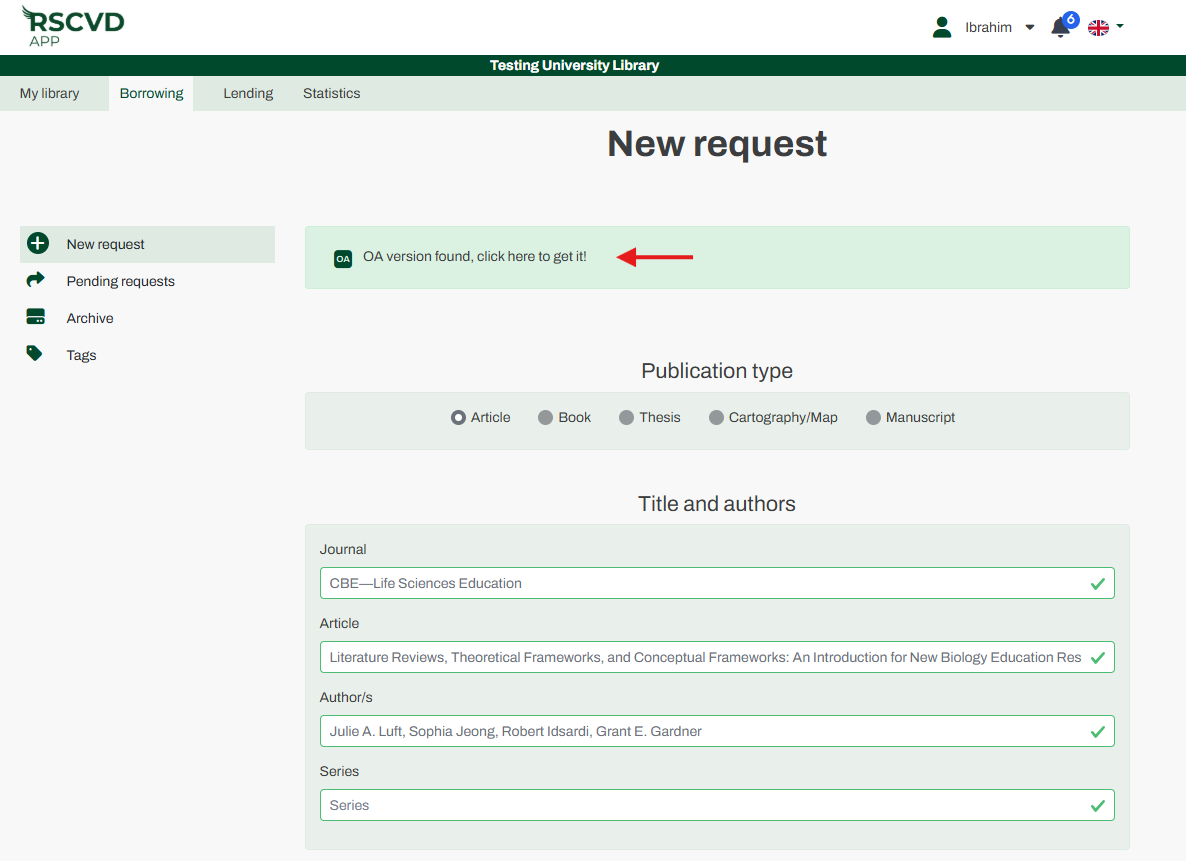
Figure 12: open access and autopopulation
NOTE: Open Access Check: The system will automatically check for an available open access version during the search process. If an Open Access version is available, the direct link to the open resource is immediately accessible within the TALARIA user interface. The OA link will be displayed immediately and will remain permanently visible under the Identifiers group within the Request Details.
Step 3: Review and Confirm
- If the reference is located, the fields will auto-populate with the retrieved bibliographic data.
- Review the pre-filled information carefully, and make any necessary additions or corrections.
- Click Submit to finalize the request.
Once submitted, your request will appear under Pending Requests.
NOTE: Moving to “Pending Requests” does not mean the item has already been ordered externally. It indicates that the request is fully filled and ready to send to the borrowing library.
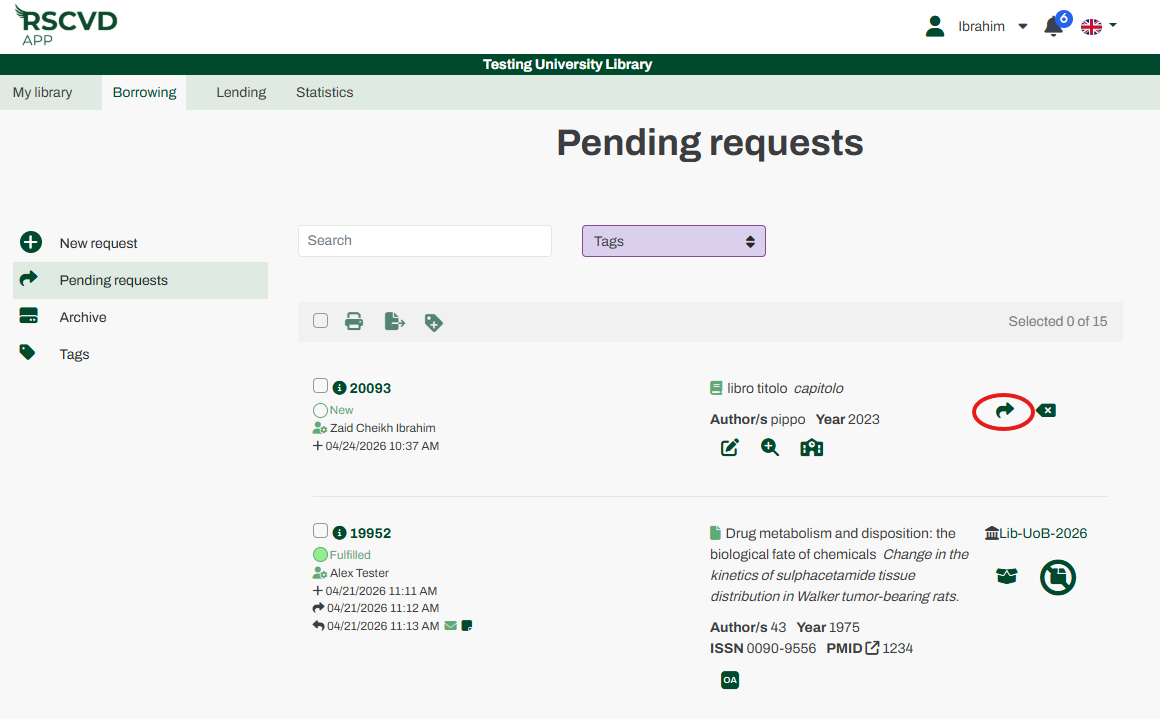
Figure 13: pending requests submission
New Request (from Borrowing Menu) #
If you prefer to start from the main dashboard rather than using the permissions menu, use this alternative method:
- Locate the library you want to place a borrowing request for on the homepage.
- Click the Go button next to that library to enter its working environment.
- Select the Borrowing tab, then click New Request.
- Proceed with Steps 2 and 3 as described in the primary workflow above to search for your reference, review the auto-populated details, and submit.