Upon registering a new library, your status in the My Library menu is initially set to New. It will change to Active once the Community Manager approves your registration. Only the Library Manager can edit library information, upgrade to a Full Profile, and add new operators. All other roles can access the “My Library” menu in read-only mode.
To transition from a “Borrower only” account to a full profile (Borrower and Lending library), click Upgrade to Full Profile.
To edit your library details, click Library Profile.
The Operators tab allows you to manage operator permissions, add or remove users, and track active invitations.
Add colleagues as library operators by navigating to the “Invite operator” panel within the “My Library” menu.
| Previously Registered User | New User |
| Search for them by surname or email, assign their permissions, and send the invitation. | Fill out the form with their first name, surname, and email, set their permissions, and send the invite. |
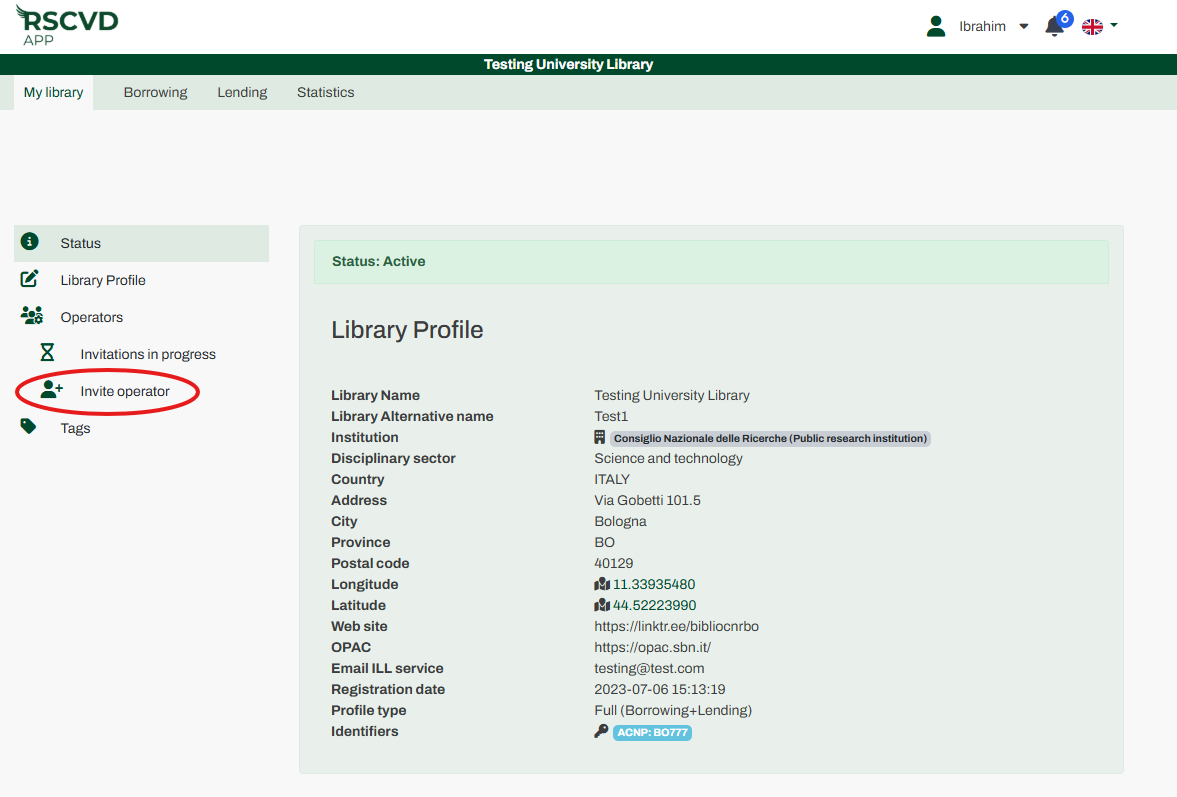
Figure 10: invite operators
Invitees can accept or decline the request directly from their personal dashboard. You can track or cancel pending requests at any time in the “Invitation in progress” menu.
Use the Tags menu to create, update, or remove custom tags. You can also generate new tags directly within the Borrowing or Lending menus while managing requests. Apply these tags to your requests to easily filter Pending lists.