Once a request has been submitted and appears under Pending Requests, you can manage its details, verify metadata, and forward it to potential lending libraries.
Available Actions on Pending Requests #
For each “new” request listed in Pending Requests, you can perform the following actions:
- Edit: Modify or update the bibliographic metadata for the new request.
- Check OA: Check at any time to see if an Open Access version is available by providing a direct link to the item’s Open Access version.
- Delete: Remove the request entirely from your list using the delete button.
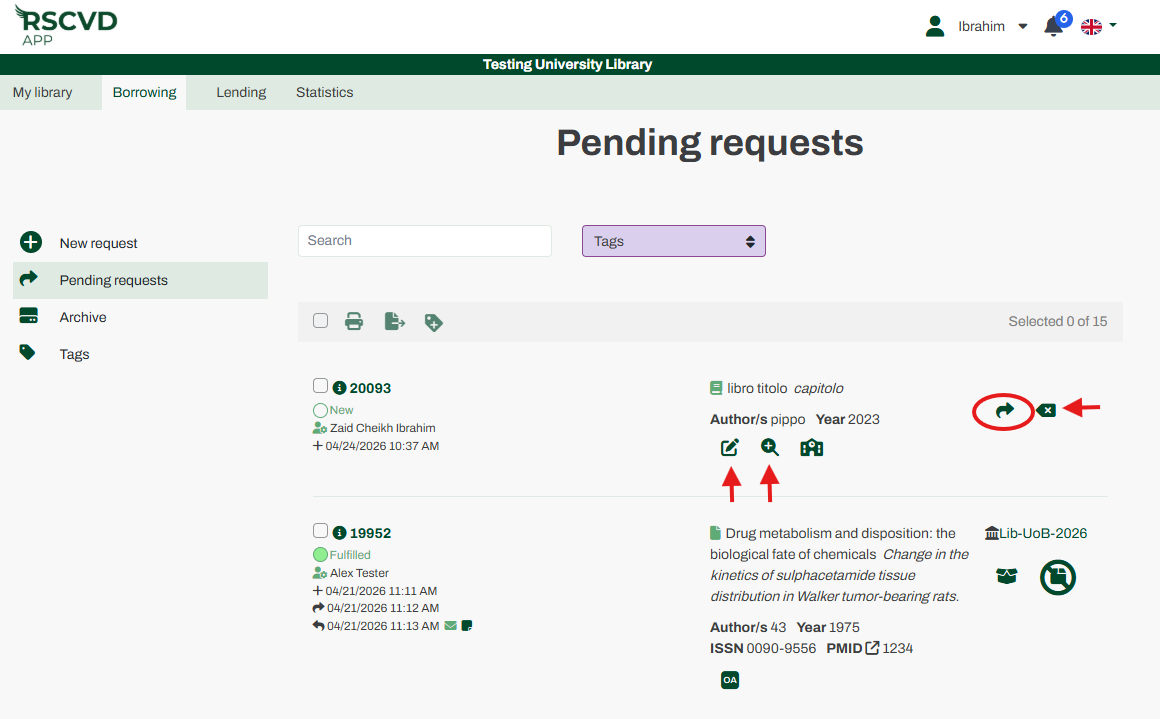
Figure 14: edit and delete a pending request
Sending a Request to Libraries #
To proceed with obtaining the item:
- Click the request button, which opens a new tab called Request Detail. At the top of the page, the request status and a summary of the entered metadata will appear.
- Choose your routing preference:
- Select a single provider from the list of all available libraries, or Choose the “ALL libraries” option. You can always search for a library using the “Library search box” and search by library name, country, institution type, subject area or identifier code.
- Confirm to send the request.
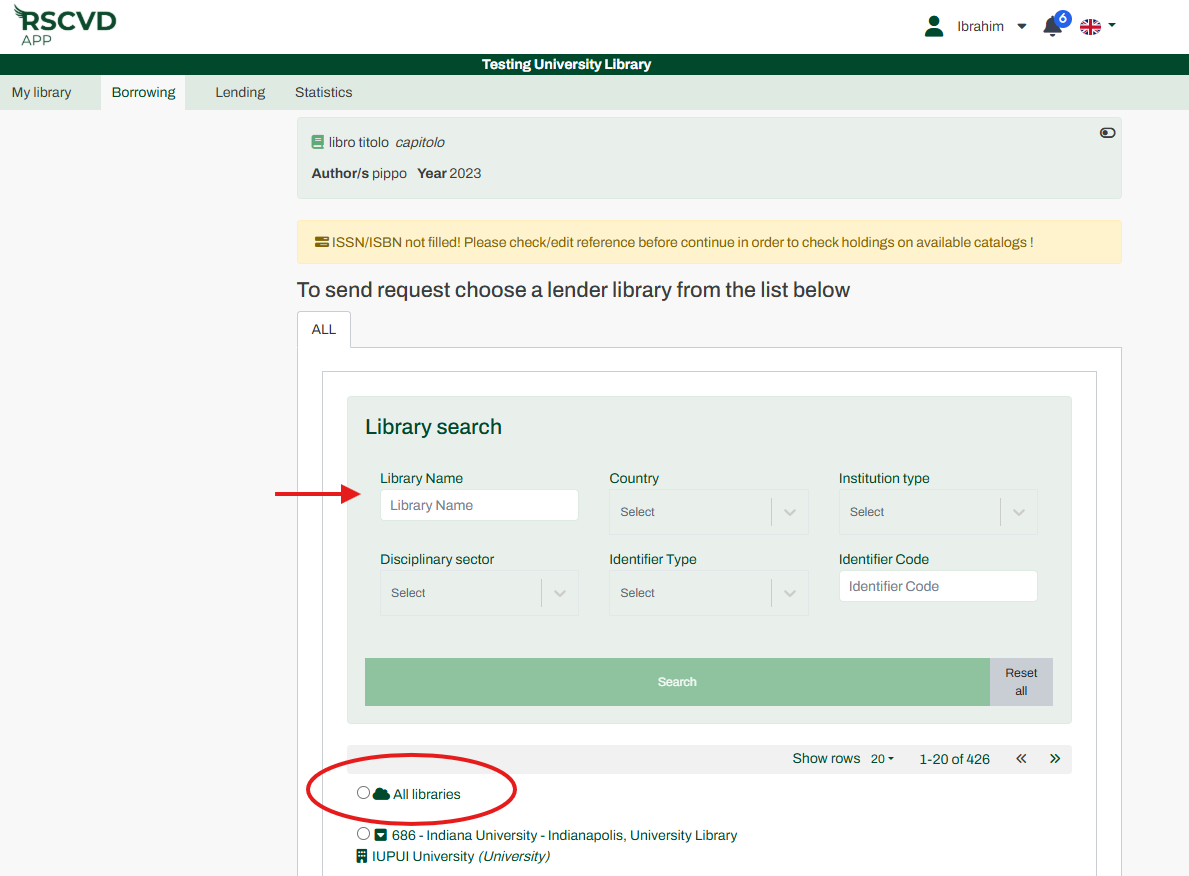
Figure15: send request
How “ALL Libraries” Requests Work #
When you choose the ALL Libraries option, the request becomes visible to all libraries in the community. The first library able to provide the item will claim and fulfill it. In the lending environment, these are referred to as “Orphaned requests.”
Cancellations and Retries #
Cancellation: A request can be cancelled directly from the Pending Requests list if needed. The behaviour of the cancellation operation varies depending on the lending library. If the request has not yet been accepted, the cancellation operation will cancel it immediately and return it to the ‘New request’ status. If, however, a lending library has already accepted the request, the cancellation will not take effect immediately, but will become a cancellation request and the status will change to ‘Cancellation requested’. The lending library has two options: to accept the cancellation request or to supply the document anyway.
Reiterate Requests: If a request goes unfulfilled, you can easily try again. Selecting the repeat option will clone the original request and automatically send it to a different library or to ALL libraries.