The platform features an integrated notification and email system designed to streamline your interlibrary loan workflow, track the lifecycle of requests, and deliver essential administrative information directly to library operators.
Email Notifications #
The system utilizes two distinct types of emails to keep operators informed:
- System Emails: These are mandatory communications involving user-related actions and core platform functionality. They cover account creation, password changes, recovery processes, registration, administrative tasks, and user permissions across the system. Because they are vital to platform security and operation, system emails cannot be opted out of.
- Service Emails: These involve specific interlibrary loan service processes, such as borrowing, lending, or library document requests. For example, when an item is requested from your library, you receive a service email detailing the borrowing library, the lending library, the request specifics, and the reference information. A direct link button at the bottom of the email redirects you straight to the relevant page.
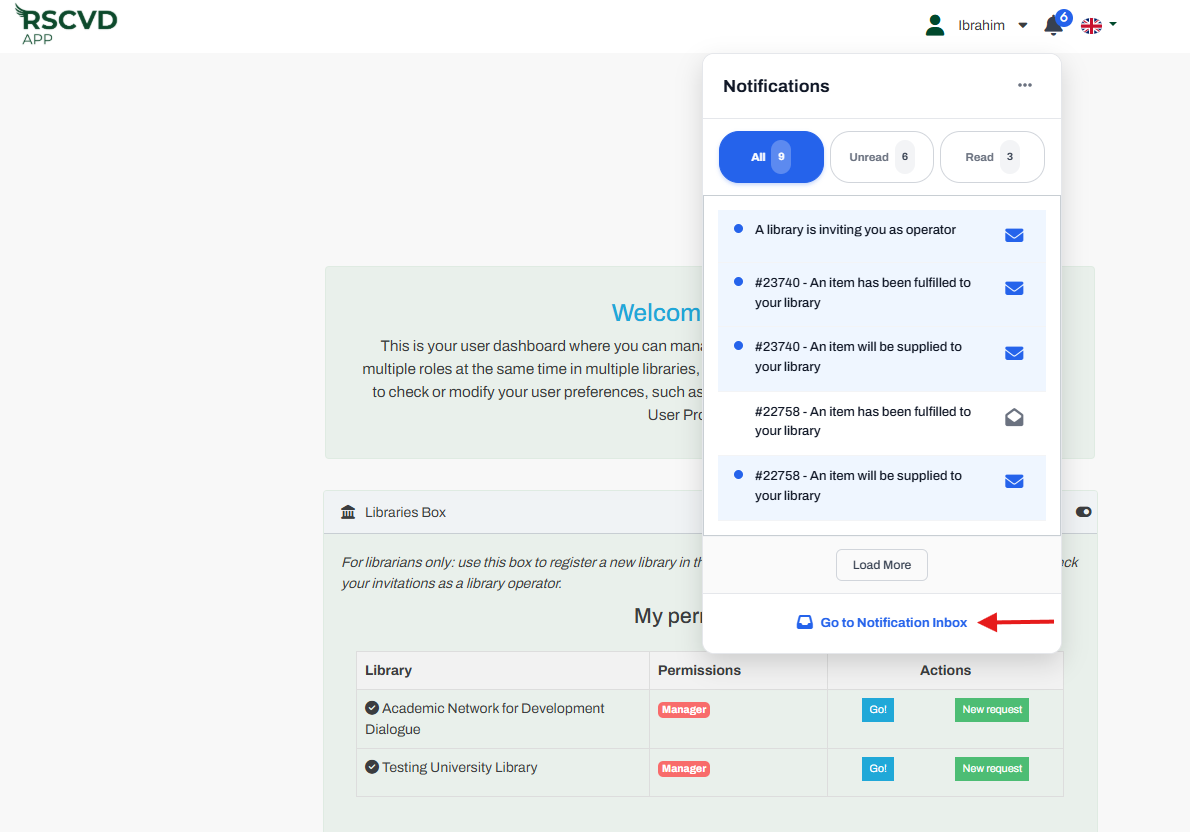
Figure 9: notifications inbox
Email and Notification Settings #
You can customize your notification preferences by navigating to Your Profile and selecting Edit User Profile, where the following fields are available:
- Service Email Address: This determines the inbox where all service emails are sent. By default, it matches your primary login email, but you can update it to route service notifications to a different mailbox.
- Receive Email Notification: Enabled by default to deliver both system and service emails. Unchecking this option will stop you from receiving service emails.
- Email and Notification Preferred Language: This setting dictates the language used for your emails and real-time alerts (defaulting to English). Note that this setting is independent of the main interface language selection.
Real-Time Notifications #
In addition to emails, the platform supports real-time notifications to alert you instantly when activity requires your attention:
- Banner Alerts: When an event occurs (such as an incoming request assigned to your library), a blue notification banner will appear on your screen for a few seconds. Clicking directly on this banner redirects you to the corresponding page of interest. At the exact same time, a corresponding service email is dispatched to your designated inbox.
- Notification Bell: Located between the User icon and the interface language flag in the navigation bar, the Notification bell icon opens your active alerts tab for quick reading and management.
- Notification Inbox: From the notifications tab, you can access your full notification inbox.
Here you can:
- Filter notifications by text, status, and time period.
- Select multiple notifications simultaneously.
- Mark all notifications as read or delete them in bulk.