Upon logging in, your dashboard displays your assigned roles across all associated libraries.
Profile Management: Use the top menu to manage your profile, view your libraries, check notifications, and update your language interface.
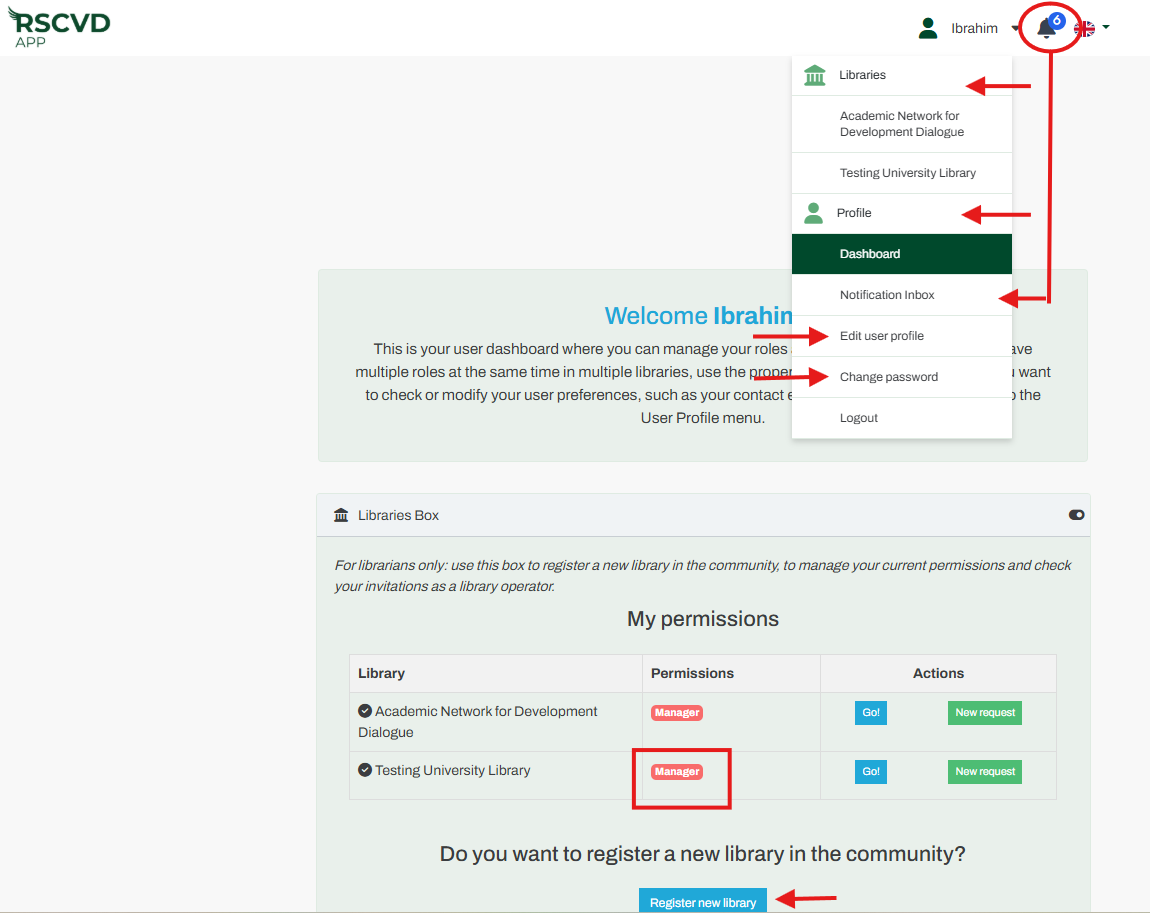
Figure 8: Dashboard & User Profile
To open the user profile panel, click on the arrow icon beside your name. The panel will display two sections: “Libraries” and “Profile“.
- Under “Libraries,” you can navigate to all libraries that you have a role in.
- Under ”Profile,” you can access your dashboard, edit your personal data, check notifications, and change your password.
Permissions & Library Access: Upon logging in, in the user dashboard you can manage your roles and your libraries. In “My Library” box, under “My permissions“, you will see your library along with your specific permissions (e.g., Manager, Borrowing Operator). From here, you can navigate to a library’s page by clicking on “Go!” or initiate a new request from the “New Request” button.
If you work in more than one library, click “Register New Library” to add a new one to the community.
Note: Dashboard menus are role-based. For example, a Borrowing Operator will only see “My Library” and “Borrowing” panels, while a Library Manager will see all available administrative menus.